No section matches your search.
STREAMIX Studio documentation
STREAMIX is a live production switcher and streaming suite for Linux. It handles multicam SRT, remote guests, titles, instant replay, multi-destination streaming and recording, all in one native app.
Install
Requirements
- Operating system: a 64-bit (x86-64) desktop Linux with glibc 2.35 or newer: Ubuntu 22.04+, Debian 12+, Fedora 39+, Linux Mint 21+, Pop!_OS 22.04+, and current Arch, Manjaro and openSUSE Tumbleweed. Recommended: Ubuntu 24.04 LTS or the current Fedora Workstation.
- CPU: 4 cores minimum, 8 cores recommended (more inputs and CPU encoding need more).
- A GPU is recommended. NVIDIA (NVENC) and Intel/AMD (VA-API) encoding are detected automatically, and STREAMIX falls back to the CPU encoder when no GPU is available. That is OpenH264, which STREAMIX downloads once from Cisco on first start; you can switch it off under Settings → Advanced. OpenH264 Video Codec provided by Cisco Systems, Inc.
- 8 GB RAM minimum, 16 GB recommended.
- An internet connection for streaming, sign-in and online services. Switching, recording and local playout work without one.
1. Install
STREAMIX ships as a single AppImage. GStreamer, codecs and the web browser engine are all bundled. One command installs it for your user (no root needed), with a launcher in your applications menu and a streamix-studio command:
curl -fsSL https://streamix.studio/install.sh | bashRun the same command again to reinstall. To remove STREAMIX (your settings and projects are kept):
curl -fsSL https://streamix.studio/install.sh | bash -s -- --uninstallUbuntu 22.04 / 24.04: if the AppImage doesn't start, install FUSE: sudo apt install fuse3. Without FUSE you can also run ./Streamix_Studio.AppImage --appimage-extract-and-run.
2. Start it
Open STREAMIX Studio from your applications menu. If you prefer the plain file, download the AppImage, then:
chmod +x STREAMIX_Studio-*.AppImage
./STREAMIX_Studio-*.AppImage
That's all. The first start takes a few seconds longer while STREAMIX scans its media plugins, and later starts are fast. Without signing in, STREAMIX runs as the Free edition: the first 4 video inputs are clean, and inputs 5 and up (and instant replay) carry a STREAMIX watermark on Program and outputs.
3. Optional: Stream Deck access
Linux doesn't let apps talk to USB Stream Decks by default. When you plug one in, go to Settings → Hotkeys → Stream Deck and click Allow Stream Deck access…. STREAMIX asks for your password once and installs a udev rule. You can also install the rule by hand:
printf 'SUBSYSTEM=="hidraw", ATTRS{idVendor}=="0fd9", TAG+="uaccess"\nSUBSYSTEM=="usb", ATTRS{idVendor}=="0fd9", TAG+="uaccess"\n' \
  | sudo tee /etc/udev/rules.d/70-streamix-streamdeck.rules
sudo udevadm control --reload-rules && sudo udevadm trigger
4. Updates
The AppImage updates itself. New versions download in the background, pause while you stream or record, and are checksum-verified. When an update is ready, a bar offers Restart and update or Later. You can never be updated mid-show: STREAMIX asks you to stop streaming and recording first. See Settings → Updates.
The update check sends an anonymous install ID (a random number made on first start), the STREAMIX build and your distribution name (e.g. "Ubuntu 24.04 LTS"). That's only used to count installations; no personal data or usage is sent.
Licence & sign-in
| Edition | What you get |
|---|---|
| Free | All core features. The first 4 video inputs are clean; inputs 5 and up and instant replay show a STREAMIX watermark. |
| STREAMIX Unlimited | Unlimited inputs. A perpetual licence includes updates for a set period, and each licence runs on 2 computers. |
| STREAMIX Online | A subscription with Unlimited plus hosted services: SWARMCAST players, TALLY-BACK talkback rooms and network bonding. |
Signing in
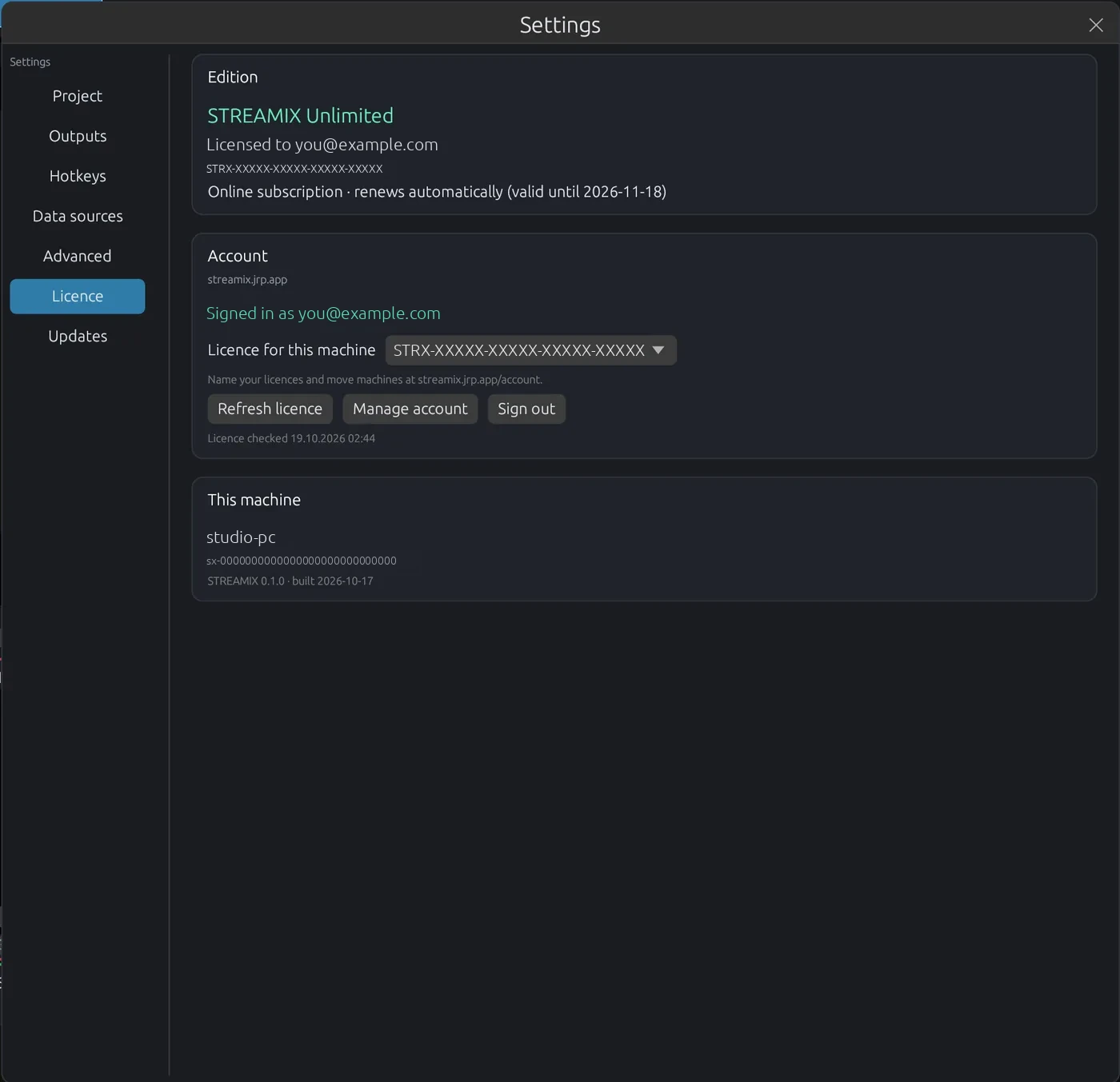
- Open Settings → Licence and click Sign in.
- Your browser opens and shows a code. Confirm that it matches the code in STREAMIX.
- Back in STREAMIX, pick the licence under Licence for this machine.
The licence is stored as a signed file and checked locally, so going live never needs the licence server: a flaky connection can't block your show. STREAMIX refreshes the file in the background every few minutes and keeps the one it has if a refresh fails. Sign out frees this machine's slot for another computer. You can also release machines from your account.
Your first show in 10 minutes
- Add an input. Click + Input below the monitors. This adds an empty input tile to the grid.
- Choose its source. Click the ⚙ gear at the bottom right of the new tile to open the source picker. Pick SRT Stream for a camera or encoder, Capture for a webcam or screen, or Media File for a video. See Inputs.
- Put it on Preview. Click PRV on the tile, or click the tile itself. A green border means Preview and a red one means Program.
- Take it to Program. Press CUT (or Space) for a hard cut, or FADE, the wipe button (it shows the selected style, e.g. BARN DOOR) or STINGER to run that transition from Preview to Program. Double-clicking a tile's picture also cuts it straight to Program. AUTO on a tile takes that input to Program with the current transition.
- Check audio. Every tile has a meter and a fader. AFV (audio follows video) brings the input's audio up only while it is on Program.
- Set a destination. Click the ⚙ next to Stream 1, choose YouTube, Twitch, RTMP, SRT, WHIP, VDO.Ninja or SWARMCAST, and paste your key.
- Go live. Click Stream 1. Click Record 1 to keep a local copy.
- Save the project. Use Save in the top bar. All inputs, titles, outputs and layouts are restored when you open it again.
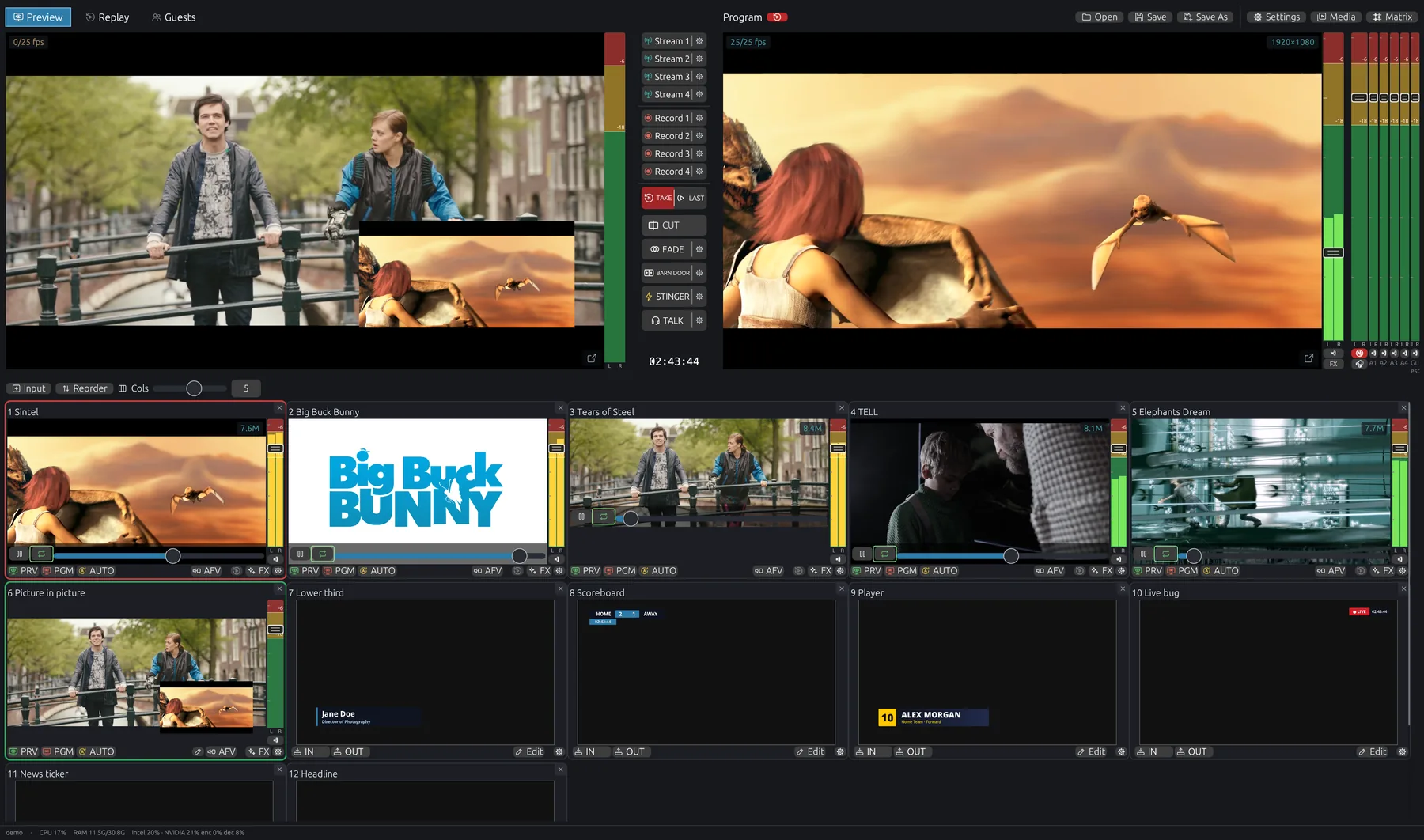
Main window tour
| Area | What it does |
|---|---|
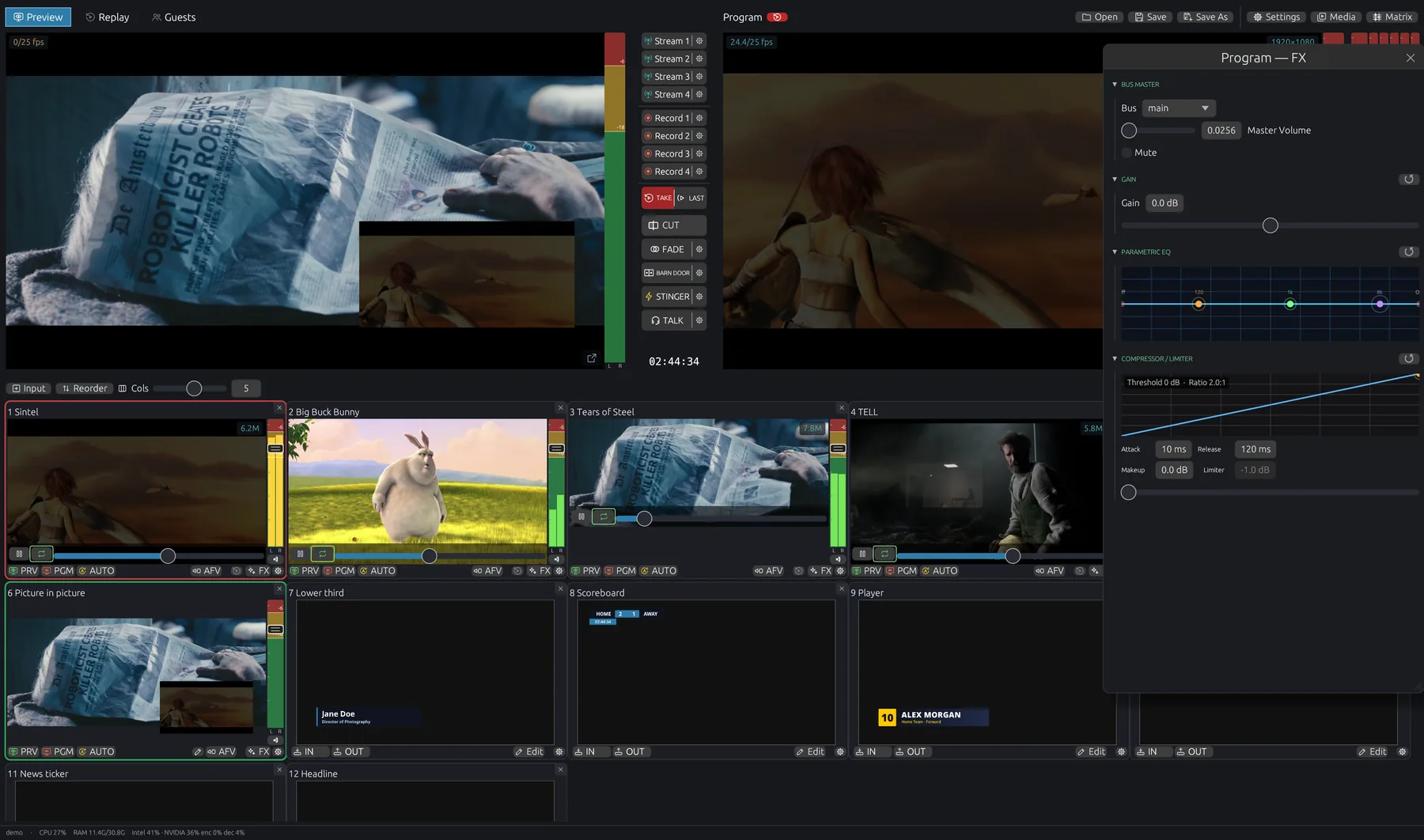
| Preview (left) | The next shot. Prepare and check here before taking it live. The Replay tab next to it switches to the instant replay panel. |
| Program (right) | What viewers see. The R next to the title arms Program itself for instant replay (red = armed). The meters on the right are the program and bus levels (Main, Monitor 🎧, A1–A4, Guest). |
| Stream 1–4 / Record 1–4 | Output buttons. Click to start or stop. The ⚙ opens that output's destination and encoder. |
| TAKE / ▶ LAST | Instant replay. TAKE saves the last seconds of every armed source as a new replay. How many seconds is the Length set in the replay panel. ▶ LAST puts the last replay on air and returns to Preview when it ends. While a replay plays, it blinks and shows the time left. See Instant replay. |
| CUT · FADE · WIPE · STINGER | Click a button to run that transition from Preview to Program right away. The ⚙ on the right edge of FADE, the wipe and STINGER sets duration, wipe style or stinger clip and cut point. The wipe button shows its current style (BARN DOOR in the screenshot). See Transitions. |
| TALK | Push-to-talk to your crew (Talkback). |
| Program header buttons | On the right of the Program title: Open / Save / Save As projects, Settings, Media (media file manager), Matrix (output routing). In the Free edition an orange FREE badge opens Settings → Licence. |
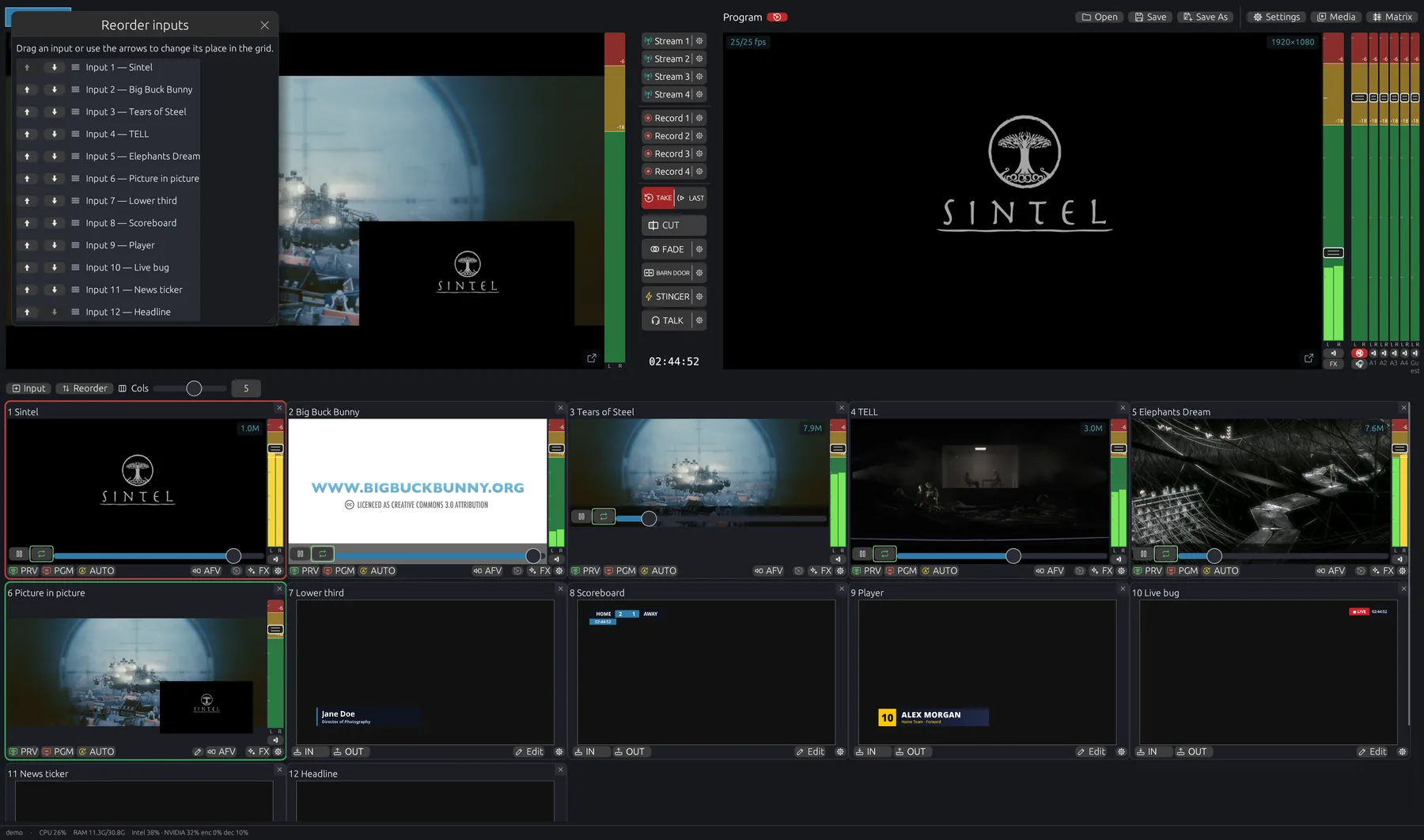
| Input grid | One live tile per input. + Input adds an empty input (choose its source with the tile's ⚙), Reorder changes the order, and Cols sets how many tiles fit per row. |
| Status bar | CPU, RAM, GPU encoder/decoder load and project messages. |
The input tile
- Click the picture to put it on Preview; double-click or right-click it to cut it straight to Program. The × in the corner removes the input (after a confirmation).
- PRV puts the input on Preview, PGM cuts it straight to Program, and AUTO takes it to Program with the current transition (Fade / Wipe / Stinger).
- AFV audio-follows-video (the ms field next to it sets the fade, 50–5000 ms) · R arms the input for replay (only inputs with live video) · FX opens colour, transform and audio effects · ⚙ opens the source settings.
- Double-click the name to rename it. SRT inputs show a status badge: Connecting, Waiting (listener, no encoder yet), Live, Sync (frame-locked group, with hold time or RTT), Stale or Error. A tile whose signal froze shows NO SIGNAL, and a media file that is missing shows OFFLINE.
- Some types get extra buttons. Media files have play/pause/loop and a scrubber, titles have IN/OUT (plus TIMER when the title has a clock) and ✏ Edit, canvases have ✏ to edit the layout, browsers have 🖱 to open the page for clicking and typing (the reload button is inside that window), and VDO Ninja inputs have copy-link and reconnect.
Inputs & source types
Click + Input to add an empty input tile, then click the ⚙ gear on that tile to open the source picker below. The same gear changes the source of any existing input.
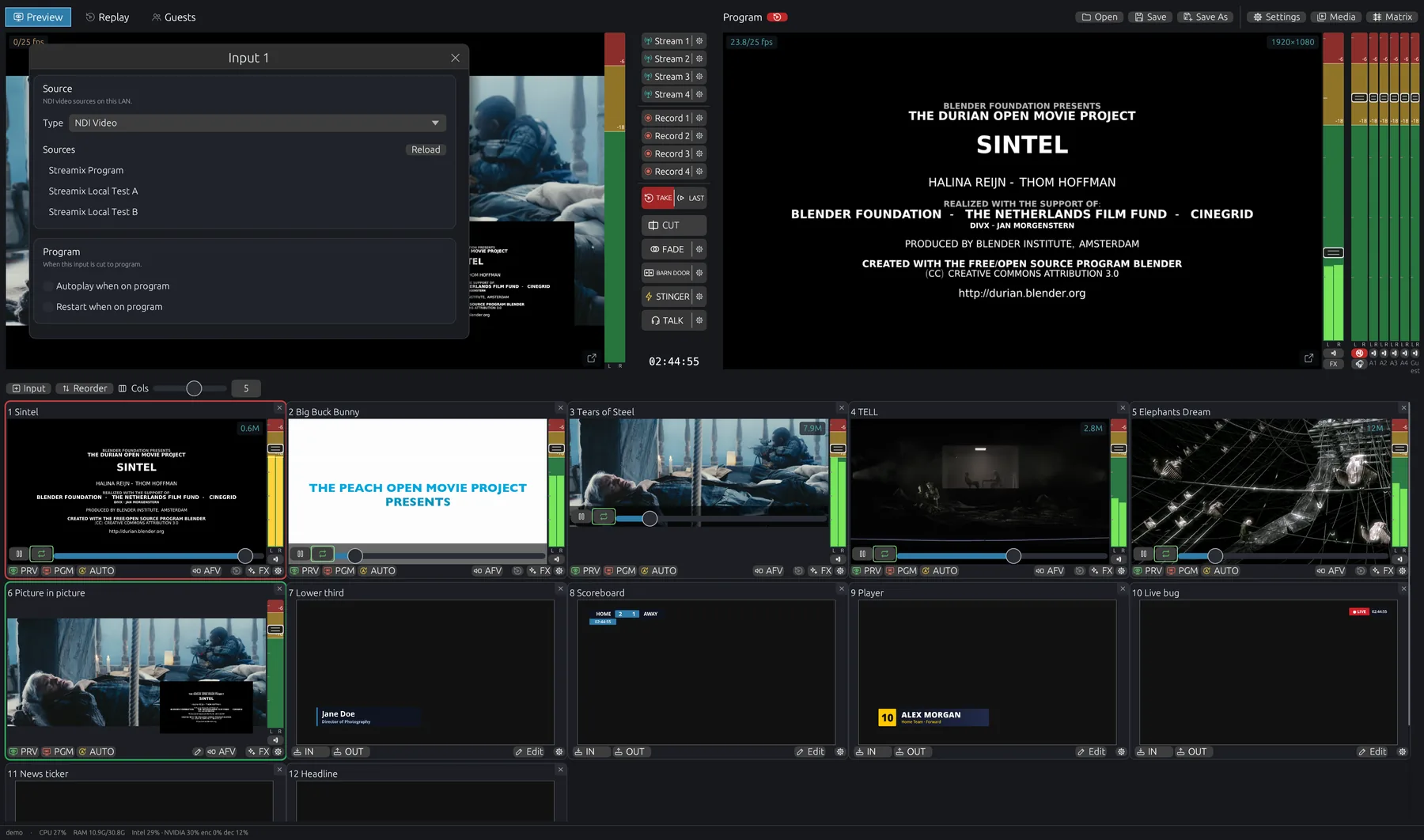
| Type | Use it for | Key options |
|---|---|---|
| SRT Stream | Cameras, hardware encoders, OBS, phones. The workhorse for low-latency contribution. | Caller/Listener, host, port, latency. Scan LAN finds encoders that are already listening. Sync with other cameras frame-locks several SRT cameras to one clock; synced cameras also get an audio and a video delay. |
| RTMP Stream | Pulling from an RTMP server, or receiving a push from OBS, phones or encoders. | Pull from a URL (rtmp/rtmps) or Receive (be the server): STREAMIX shows the push URL for the local network and public IP, with a random stream key (or "any"). |
| Remote Guest (VDO Ninja) | Remote guests who join from a browser link, with no app to install. | Max video bitrate, return feed (Program video + Guest bus audio). See Remote guests. |
| Browser | Web pages as live video with audio: scoreboards, HTML graphics, YouTube, dashboards. | URL, and No GPU for pages that render wrong with GPU acceleration. The tile's 🖱 button opens the page to click and type in it, and to reload it. |
| Media File | Videos (playout, clips, intros) and still images. | Loop, autoplay when on program, restart when on program. |
| Capture | Webcams, HDMI capture cards (V4L2) and screen capture. | Device selection. |
| Audio Input | Microphones and mixers via PipeWire/PulseAudio, or an audio file. | Device or file. Audio files have play / pause, loop and seek, like video files. |
| Title | Lower thirds, scoreboards, rankings and tickers made in the built-in editor. | See Titles. |
| Canvas | Picture-in-picture, split screens and multi-layer scenes. | See Canvas. |
| NDI Video / NDI Audio | NDI® sources on the LAN, full bandwidth and HX (ndi.video). | See NDI®. |
Multicam over SRT: turn on Sync with other cameras on every camera input that belongs together. STREAMIX buffers them onto one clock so cuts between angles stay lip-sync and frame-accurate, even when the cameras arrive over different networks.
Transitions & stingers
- CUT switches instantly (Space).
- FADE, the wipe button and STINGER each run their transition from Preview to Program as soon as you click them.
- AUTO on an input tile takes that input to Program with the current transition.
- FADE is a cross-dissolve. Set its duration with ⚙ (50–15000 ms; the same duration is used for fade to black).
- Wipe comes in Right, Left, Down, Up, Barn door, Box, Push, Slide and Zoom styles, chosen in its ⚙. The button shows the selected style.
- STINGER plays an animated clip with alpha, and Program cuts underneath at the cut point. Sweep and REPLAY stingers are built in, and any Media File input can be used as the clip (ProRes 4444 or PNG keep alpha). Set the clip and cut point in the stinger's ⚙. Without a usable clip, the take falls back to a fade. Built-in stingers are pre-decoded so they start instantly.
- FTB (fade to black) fades the whole Program out. It has no button on the transition bar: assign it to a hotkey, a Stream Deck key or the Action API. While it's black, the monitor shows PROGRAM BLACK.
Click the ⚙ on the right edge of a transition button to change its duration and options.
Audio mixer
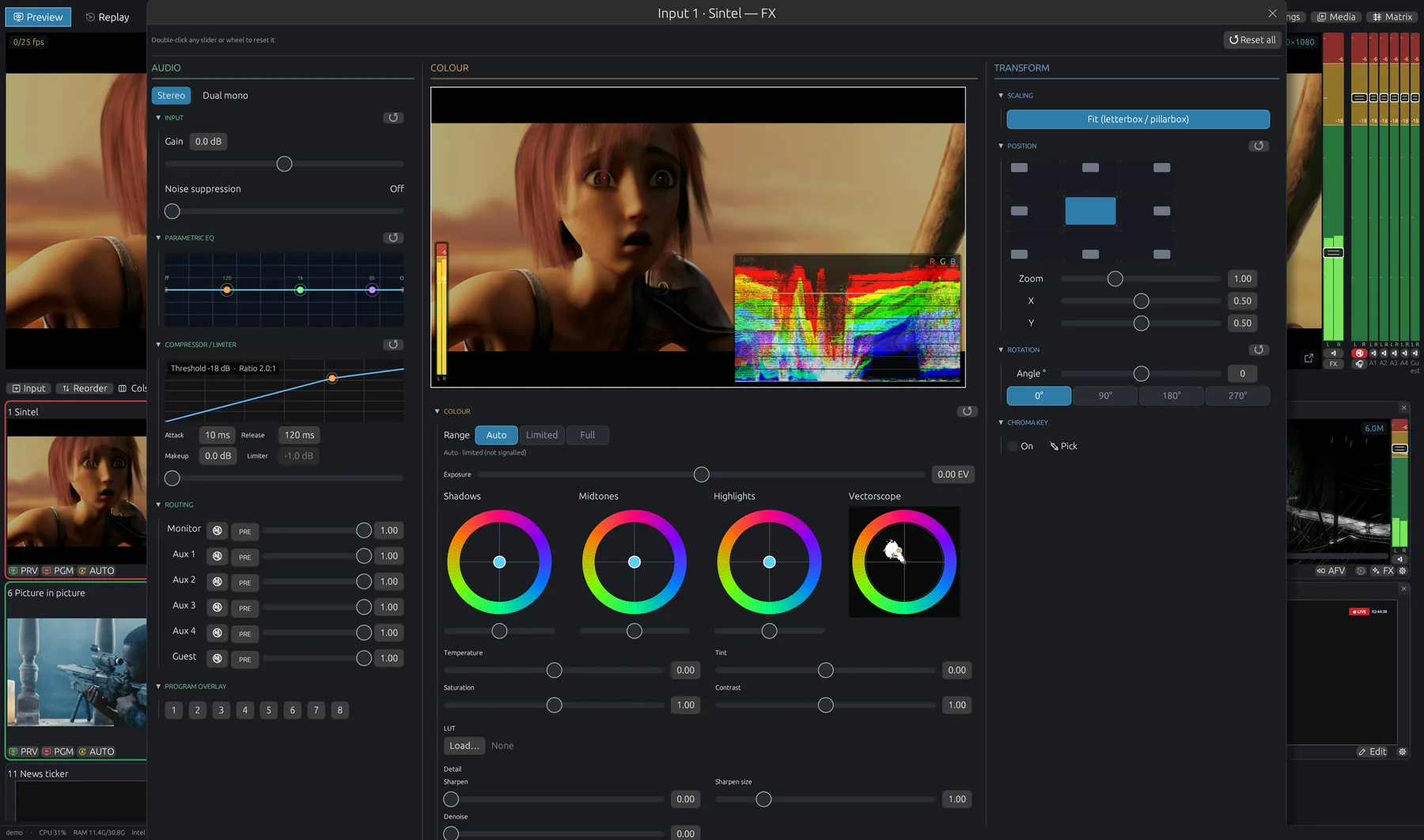
Every input has a strip: meter, fader, mute, and AFV. The full strip in FX → Audio adds:
- Gain, Pan, Stereo / Dual mono, with copy L↔R settings.
- Routing to buses Main, Monitor, Aux 1–Aux 4 and Guest, each with its own send level, mute and PRE / POST fader switch. The Guest bus is the mix your remote guests hear.
- Gain with Noise suppression (Off / Low / Moderate / High / Very high, adds about 10 ms of delay), a Parametric EQ (drag the dots, scroll for Q, red squares for low and high cut) and a Compressor / Limiter (drag the knee dot for threshold, scroll for ratio; attack, release, makeup and limiter ceiling).
Program audio has its own FX chain (Program — FX) and a master. Choose your speakers (Program) and headphones (Monitor) under Settings → Project → Audio devices. The internal mix always runs at 48 kHz.
Tip: Double-click any slider to reset it.
Video & audio FX
Click FX on any tile. The window has Audio, Colour, Chroma key and Transform sections, plus Program overlay. Transform and keying are not available for canvas inputs.
Colour
Range (Auto/Limited/Full), exposure, shadows/midtones/highlights colour wheels, lift, gamma, temperature, tint, saturation, contrast, sharpen, denoise and skin tone. You can load a .cube LUT (1D or 3D) to apply before or after grading.
Chroma key
Pick Green, Blue, or use 💉 Pick and click the backdrop in the preview. Then fine-tune similarity, smoothness and spill.
Transform
Quick placement presets (full screen, centered, corners), size and position, rotation in 90° steps or free, crop, fit (letterbox/pillarbox), zoom and opacity.
Audio
The input's full audio strip, described under Audio mixer.
Canvas (multi-layer scenes)
A Canvas input composes several inputs into one picture: picture-in-picture, side-by-side interviews, a camera over slides, and so on.
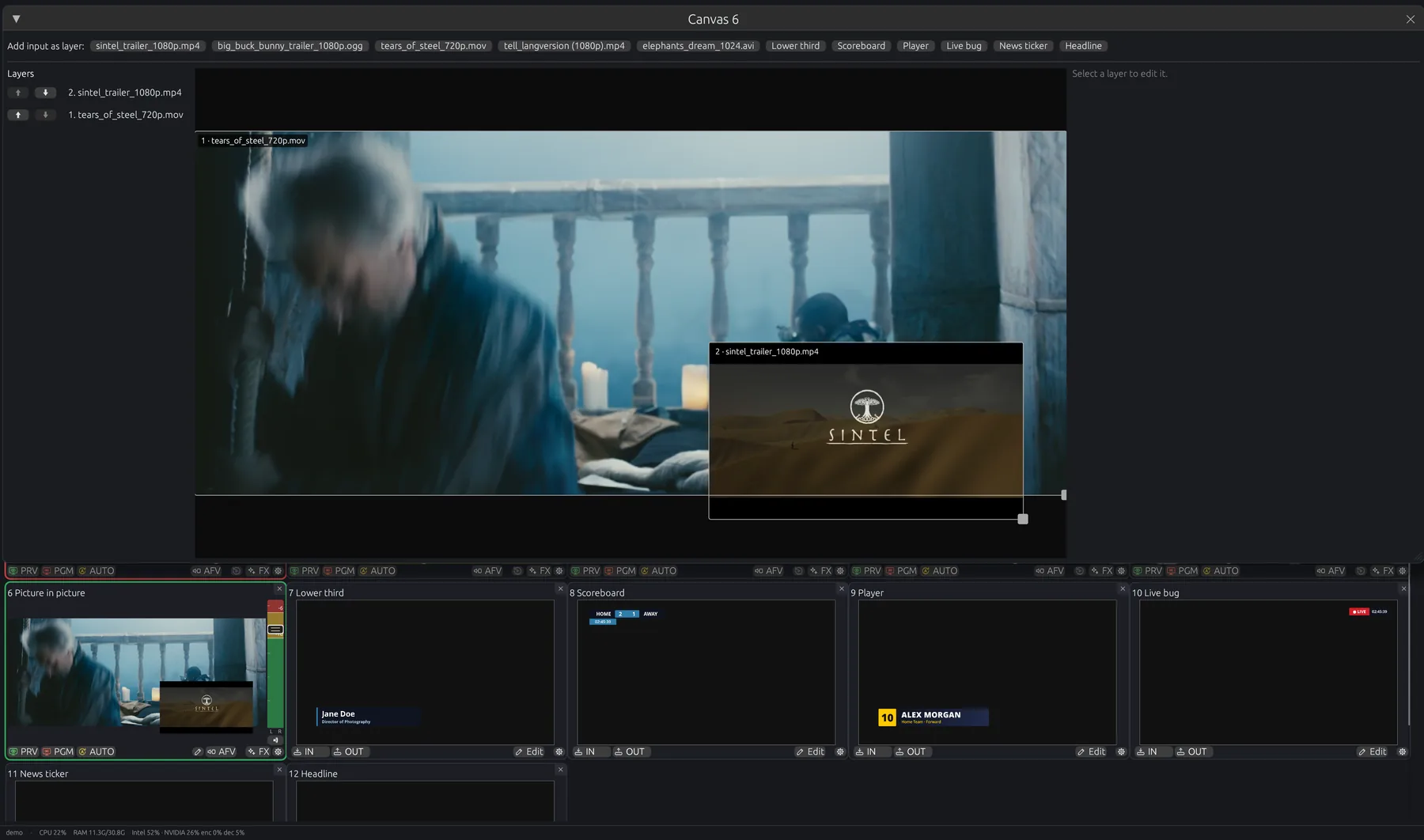
- Click an input under Add input as layer (up to 8 layers), then drag the layer on the preview. Drag its handle to resize it, and drag the edge handles to crop it.
- The layer list sets stacking order (⬆ Bring forward / ⬇ Send backward). Each layer has its own position, size and crop.
- Canvases can nest: a canvas can be a layer of another canvas.
- Change which input sits in a layer live, via hotkey or the API (
canvas.layer).
Program overlays
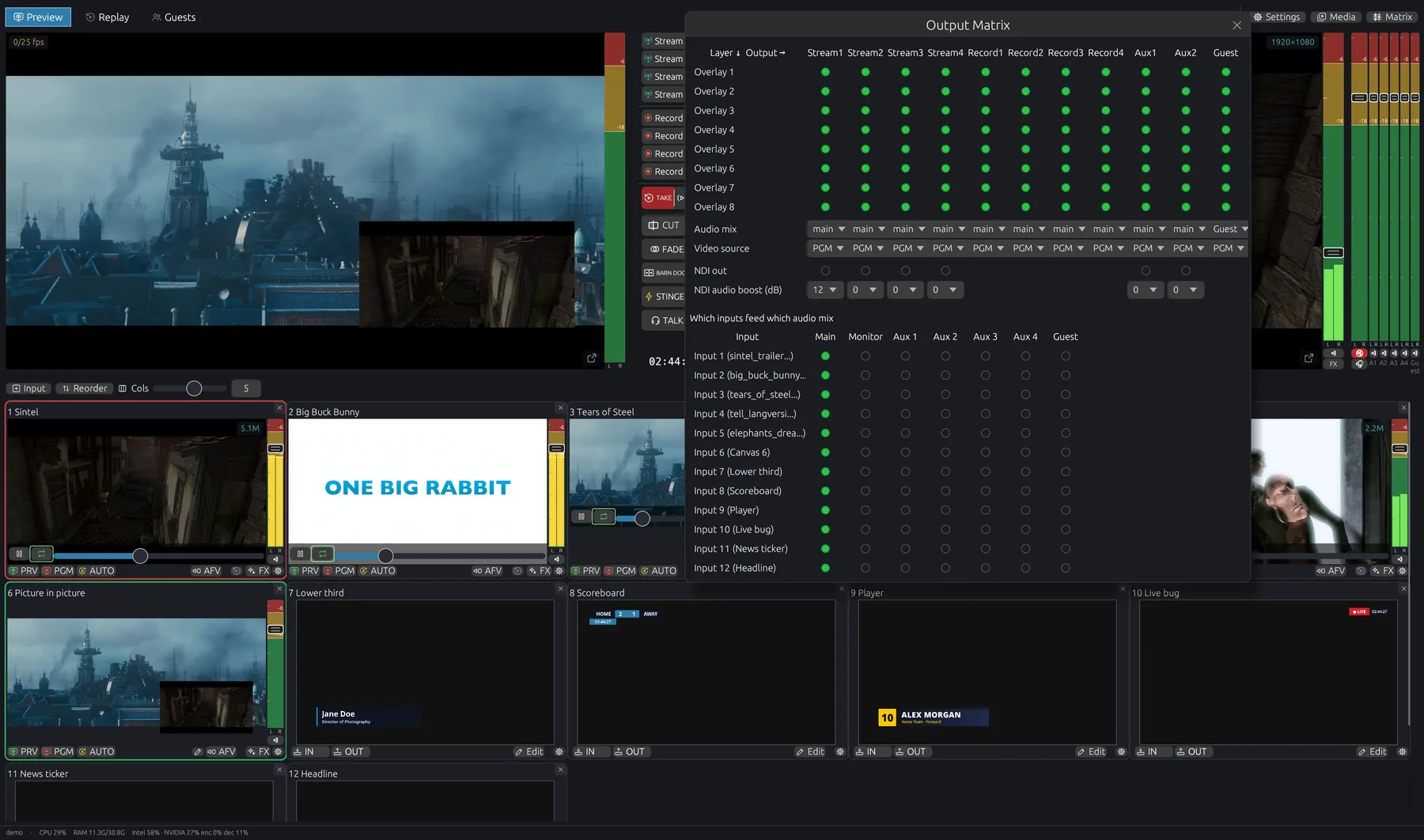
Overlay layers key an input or title on top of whatever is on Program, so it stays there through every cut. Open FX on a tile and click a layer number (1–8) under Program overlay to put that input on that layer (click it again to remove it). Which layers each output shows is set in the Output Matrix. Hotkeys and the API can show, turn off, toggle or cycle overlays. Titles taken IN appear on every overlay layer ticked in the title's settings.
Titles & graphics
In an input's source picker choose Title, then + New title (pick a template or From JSON…) or an existing title. Click ✏ Edit on its tile (or Edit… in the picker) to open the title editor. IN and OUT on the tile animate it on and off air.
Layers
Text, rectangle, ellipse, image, ticker, clock, group and table layers. They support masks, shadows, linear and radial gradients, snapping and a safe-area guide. Shortcuts: undo/redo Ctrl+Z / Ctrl+Shift+Z, duplicate Ctrl+D, change layer order Ctrl+[ / ].
Data-driven titles
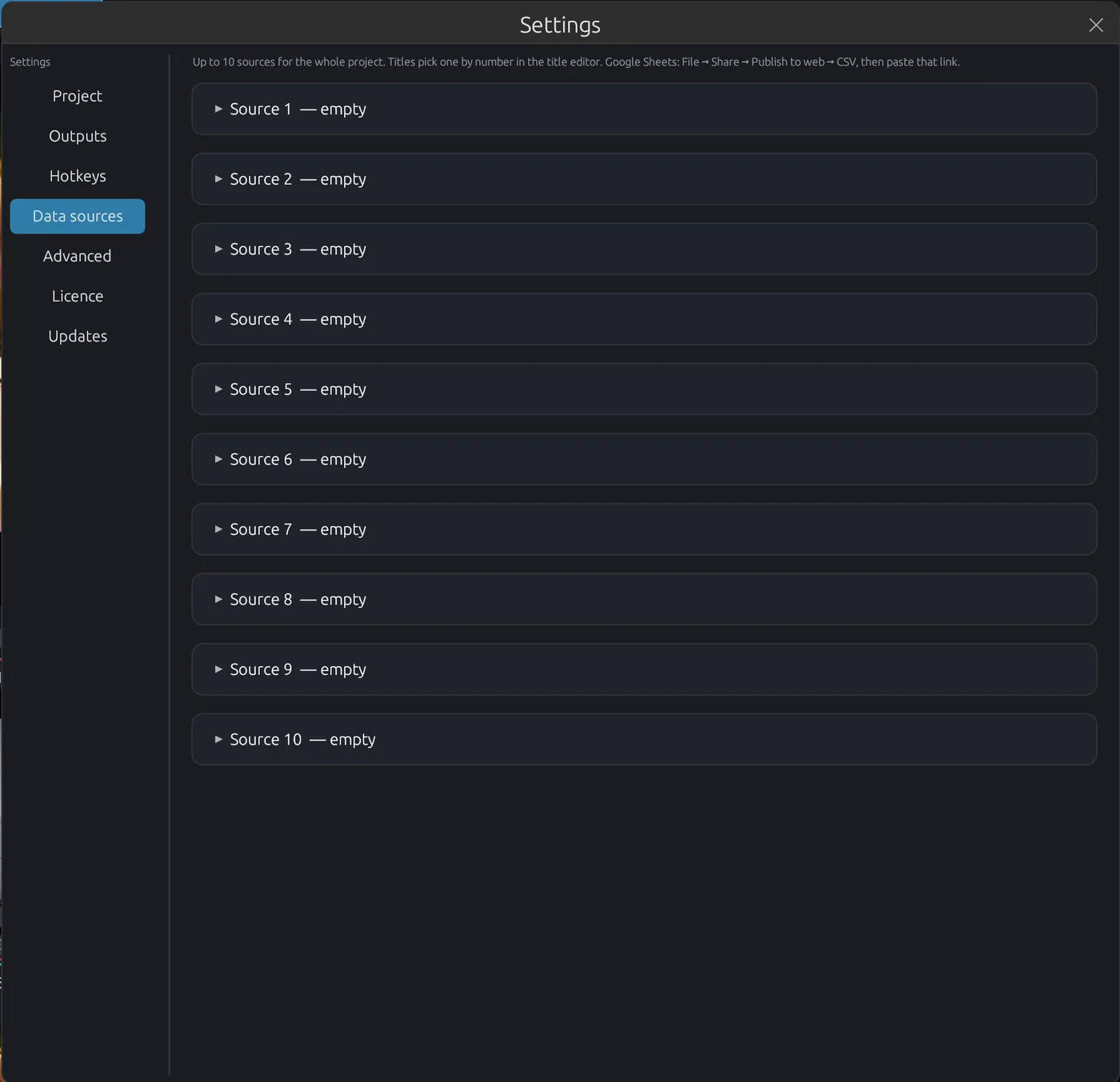
Connect a CSV/TSV or JSON source (file or URL, with auto-refresh) under Settings → Data sources, then bind text layers to fields. The ON AIR bar steps through rows and pages. Repeat turns one row design into a list or ranking (count, spacing, sort, matching rows by key, slide animations).
Clocks & timers
Clock layers show the time of day, a count-up timer (stopwatch), a countdown from a set duration, or a countdown to a time of day. Timers can start automatically on IN and keep running, pause or reset on OUT. They can also be run from the tile's TIMER button, the ON AIR bar or hotkeys.
Advanced: scripting
For logic the editor can't express, a title can run a small sandboxed script, and any property can be an expression. Available values include fields, row, rows, index, vars, t and clock.
Share & AI
Copy a title as JSON to share it or paste it into another project. Copy AI prompt gives you a ready-made prompt to have an AI assistant rework the title or design a new one.
Instant replay
- Arm the sources you want to replay with R on their tiles (the R next to the Program title arms Program itself). Only inputs with live video can be armed. Each armed source records into a rolling RAM buffer, and its row shows how many seconds are buffered. Buffer settings estimates the RAM used per armed source.
- When something happens, press TAKE REPLAY in the replay panel, or the TAKE half of the button above CUT. All armed angles are cut at the same moment, and Length (5 / 10 / 20 s presets, or 1–120 s; default 10 s) sets how many seconds go back. Each replay is saved to
~/.config/streamix/replaysand added to the list. - Play it: ▶ Play (or double-click a row) plays the selected replays, Next angle switches the playing replay to the next angle, and Play whole list plays every replay. SPEED runs from 10 % to 200 % (presets 25 / 50 / 75 / 100 %). These play into the Replay input and the Replay tab without changing Program. To go on air, use PGM ▶▶ (the selected replay to the end of the list), ▶ LAST next to CUT, or take the Replay input to Program. Drag a row by its :: handle to reorder, and use the trash button or Delete to remove one.
On air look sets the transition into and out of a replay (Cut, Fade or Stinger, used by PGM ▶▶ and ▶ LAST) (the built-in REPLAY stinger is made for this) and an optional overlay, such as a "REPLAY" bug, while it plays. Buffer settings set the buffer bitrate and the encoder (Auto, CPU, NVENC or VA-API). Each buffer keeps the take length plus 2 seconds, so it uses only the RAM a take needs. Changing the length doesn't clear what is already recorded.
When playback ends, Program returns to the shot that was on before. The Replay input is created in a free input slot the first time a replay goes to Program. Hotkeys and the API can arm Program as well, with target program.
Streaming
There are up to 16 independent stream outputs. Click ⚙ next to a Stream button:
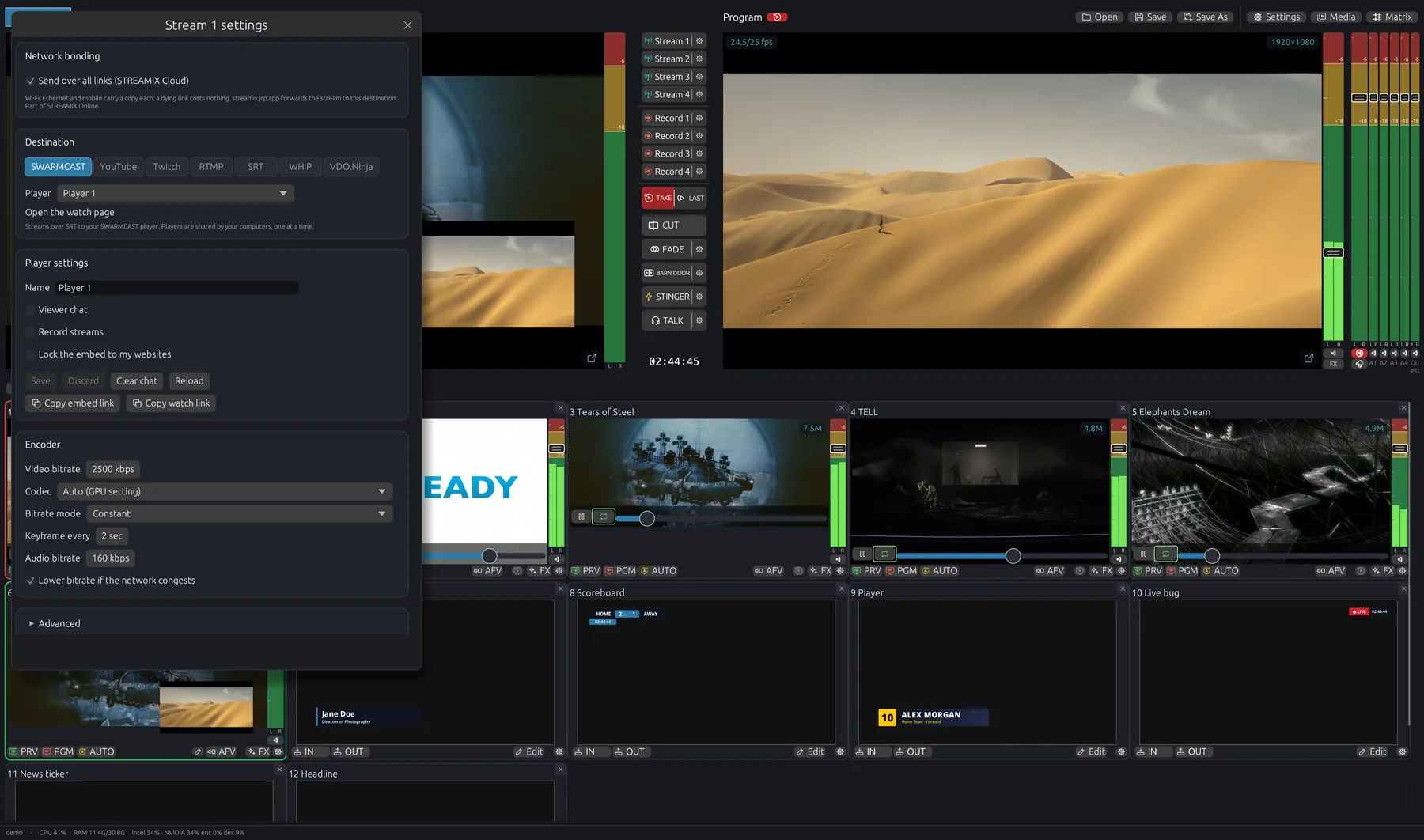
| Destination | Notes |
|---|---|
| YouTube / Twitch | Paste the stream key. Leave Server empty to use the default ingest, or enter a different one. |
| RTMP | Any RTMP/RTMPS server: Facebook, Restream, your own nginx, and so on. |
| SRT | Caller or Listener, latency, stream ID, passphrase and encryption. Use it to feed another studio, a decoder or a CDN. |
| WHIP | WebRTC ingest for sub-second delivery (Cloudflare, Dolby, LiveKit, MediaMTX…). Paste the endpoint URL; Token is for services that need a bearer token. |
| VDO.Ninja | Publish Program to a VDO.Ninja channel, for example as a return feed. View URL has Copy, and Show opens the link to add as a vMix Web Browser input. |
| SWARMCAST | A hosted player with a watch page, included in STREAMIX Online. It appears once you are signed in, streams over SRT, and a player is used by one computer at a time (starting asks to take it over). |
Encoder
Video and audio bitrate, codec (Auto (GPU setting), Software (CPU), NVIDIA GPU (NVENC), Intel / AMD (VA-API)), bitrate mode (Constant / Variable), Keyframe every and Quality vs. speed. Lower bitrate if the network congests adapts automatically on weak connections. Defaults for new outputs are set in Settings → Outputs.
Stopping a live stream always asks for confirmation.
Recording
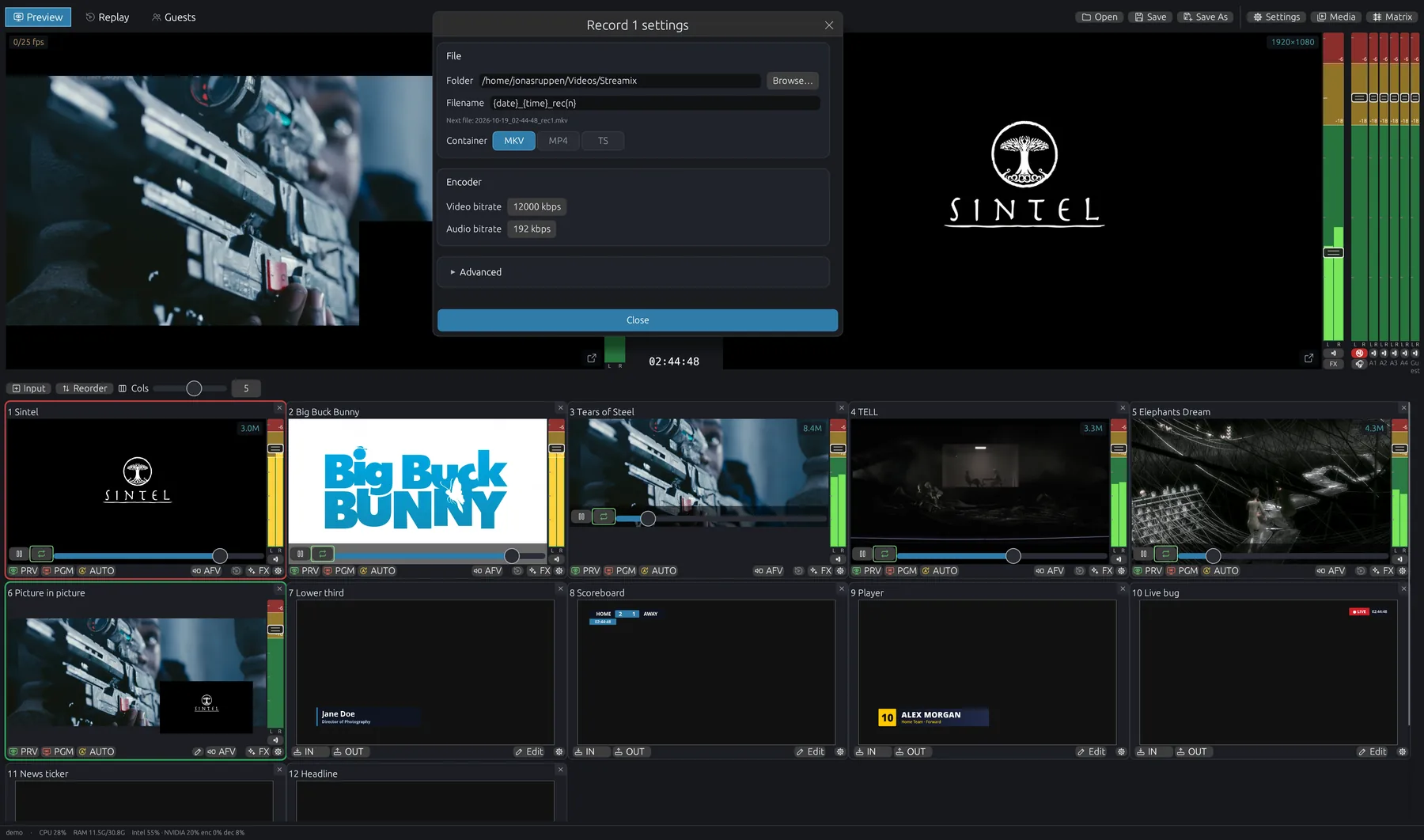
Each Record button has its own folder, filename pattern, container (MKV or MP4) and encoder. Files can be split by size or time. Prefer MKV for long shows, because it stays playable even if power fails. Changing the project format during a recording continues in a new file.
Output matrix
Matrix (top right, next to Media) opens the Output Matrix. There is one column per output, and the rows are: Overlay 1–8 (click a dot to choose which overlay layers that output shows), Audio mix (which bus it carries), Video source (Program or a single input, for an ISO recording) and NDI out (see NDI®). The lower grid (Which inputs feed which audio mix) has one row per input and one column per bus.
Network bonding
Tick Send over all links (STREAMIX Cloud) in a stream's Network bonding card to send it over every network connection at once: Ethernet, Wi-Fi, phone tethering and 4G/5G sticks. Each link carries a copy, so if one link drops the stream carries on. hub.streamix.studio forwards it to your destination. The link chips in the top bar show each link as healthy, weak or failed. You can exclude links under Settings → Outputs → Network links. Bonding needs a licensed STREAMIX and a STREAMIX Online subscription. WHIP and VDO.Ninja outputs can't be bonded.
Keyboard shortcuts
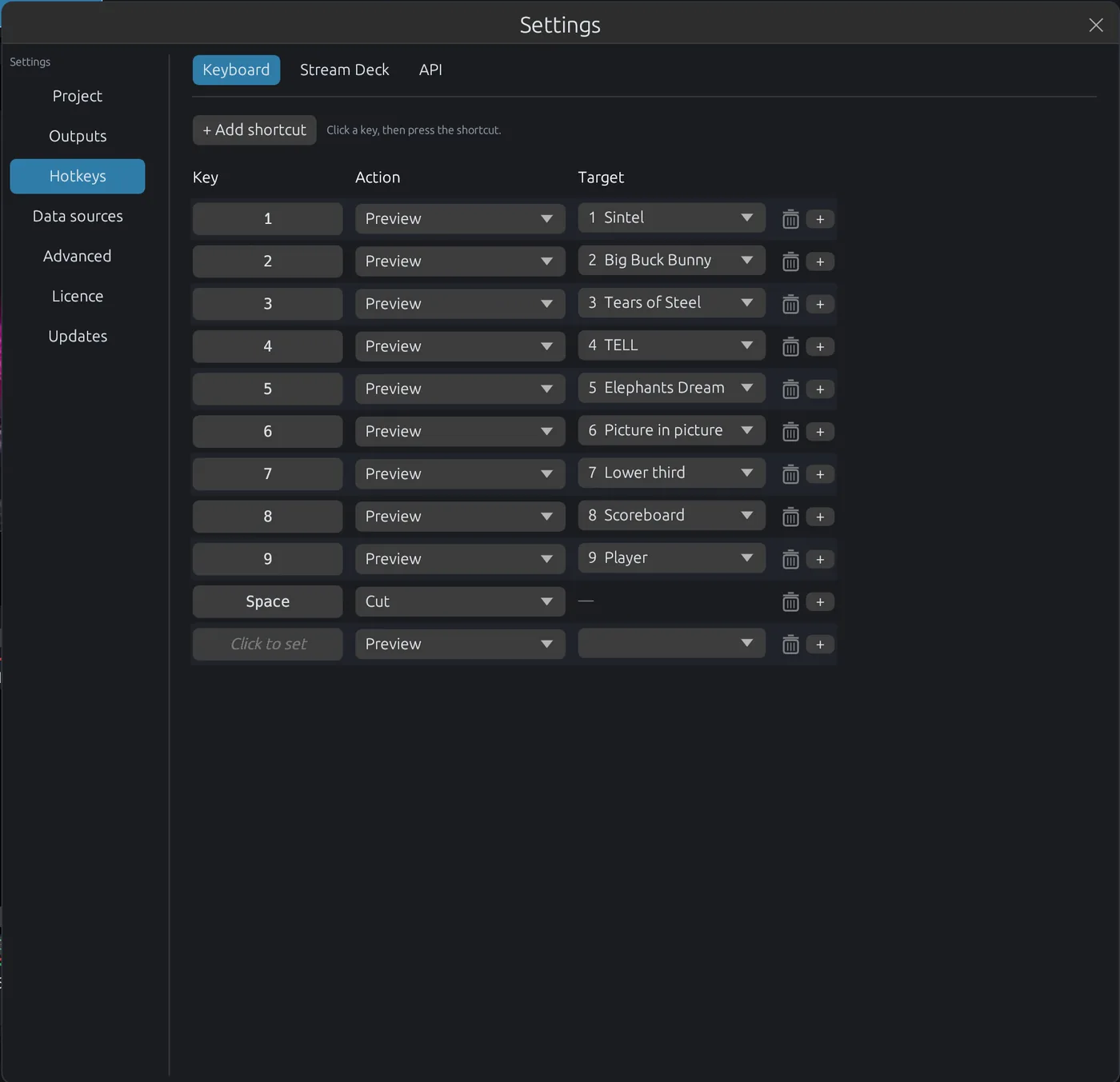
Settings → Hotkeys → Keyboard → + Add shortcut. Click the key field, press the combination (Ctrl/Shift/Alt allowed) or a MIDI button, then choose an Action and its Target, such as an input number or title. Use + to run several actions from the same key; Esc cancels capture.
Almost everything is bindable: preview/cut/auto per input, transitions and their times, wipe style, mutes and volumes, stream/record toggles, overlays, every replay function, title in/out/rows/pages/fields/clock, canvas layer source, input source and talkback push-to-talk. By default Space is CUT and the number keys 1–9 put inputs 1–9 on preview.
Stream Deck & MIDI
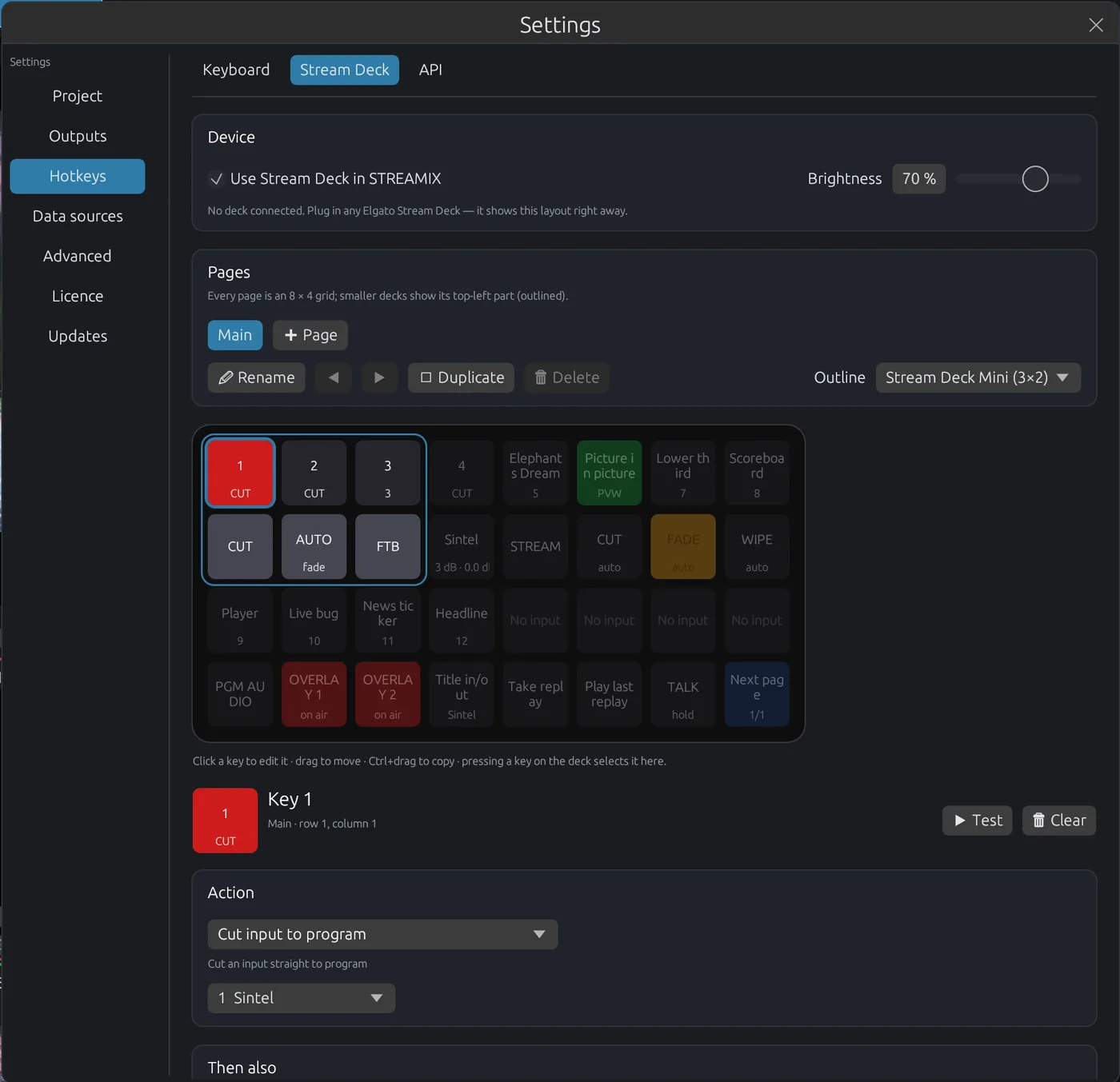
Plug in any Elgato Stream Deck (Mini, MK.2, XL, Neo, +, Module, Pedal…) and it shows a ready-made layout immediately. If nothing happens, see Stream Deck access.
- Pages: add, rename, reorder, duplicate or delete. Keys can switch to the next or previous page, or jump to a page.
- Per key: action, label (
\nfor a line break), key colour, and when it lights up (automatic, on Program, on Program or Preview, never) in which live colour (hidden when set to never). ▶ Test runs the key's action now, as if the key was pressed. - Brightness (10–100 %), and Reset all pages to the default layout (double-click). The Neo's two touch keys flip pages; the Pedal has buttons only.
- Smaller decks show the top-left part of each page.
- MIDI controllers can trigger the same actions (notes and CCs). Bind them in Settings → Hotkeys → Keyboard: click the key field and press the pad or button. A CC fires when it crosses the middle value (64). Controllers are picked up when plugged in.
Action API
Every action is also an HTTP endpoint, for Bitfocus Companion, scripts, custom web panels or plain browser links. By default only this computer can connect (127.0.0.1). Every request needs the token from Settings → Remote control.
- Other computers on the network: tick Allow other computers on the network. Settings then shows the network address (for example
http://192.168.1.20:8091); use it instead of127.0.0.1. Requests are not encrypted, so keep this inside your own network and never forward the port to the internet. - From anywhere (STREAMIX Online): tick Remote control through hub.streamix.studio. STREAMIX connects out to hub.streamix.studio, so no port forwarding is needed, and Settings shows this computer's address,
https://hub.streamix.studio/control/<id>. Put it in place ofhttp://127.0.0.1:8091; paths and token stay the same, for examplehttps://hub.streamix.studio/control/<id>/api/v1/status. Needs a STREAMIX Online subscription and this computer activated on the account; each request takes a little longer than on the local network.
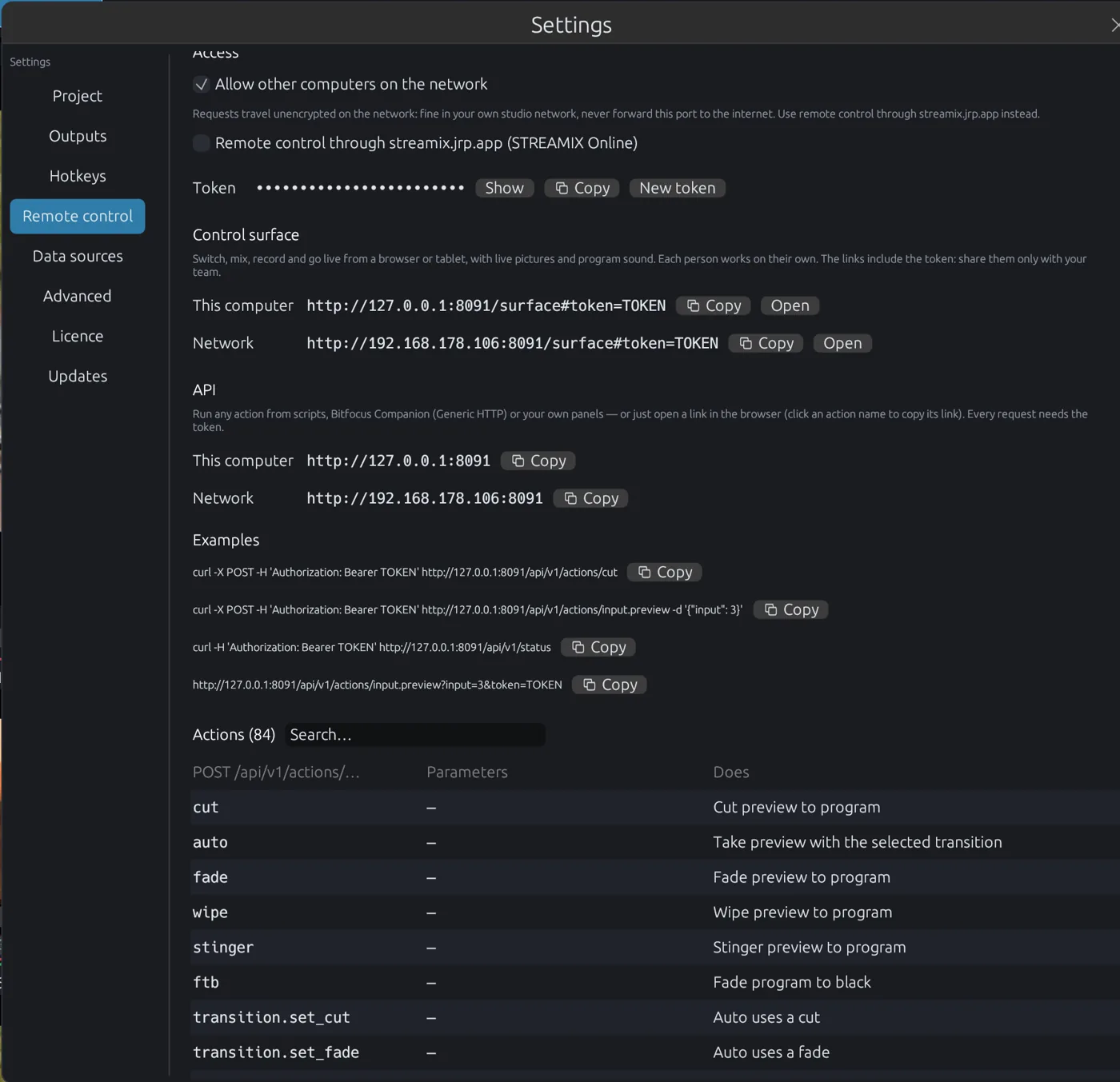
# cut preview to program
curl -X POST -H 'Authorization: Bearer TOKEN' http://127.0.0.1:8091/api/v1/actions/cut

# put input 3 on preview (JSON body)
curl -X POST -H 'Authorization: Bearer TOKEN' \
     http://127.0.0.1:8091/api/v1/actions/input.preview -d '{"input": 3}'

# the same as a plain link (Companion "Generic HTTP", browser bookmarks…)
http://127.0.0.1:8091/api/v1/actions/input.preview?input=3&token=TOKEN

# live state: tally, LIVE/REC, mutes
curl -H 'Authorization: Bearer TOKEN' http://127.0.0.1:8091/api/v1/status

# list all actions with parameters
curl -H 'Authorization: Bearer TOKEN' http://127.0.0.1:8091/api/v1/actions| Value style | Meaning |
|---|---|
{"state":"on"} / "off" / "toggle" or omitted | Switch on, switch off, toggle (switch actions). |
{"db":-6}, {"ms":500}, {"percent":100} | Set an absolute value. |
{"step":3} / {"step":-3} | Step relative to the current value. |
Action groups: cut auto fade wipe stinger ftb, transition.*, input.*, overlay.*, title.*, replay.*, bus.*, program.*, stream.toggle, record.toggle, talkback.ptt, canvas.layer, settings.get/set, window.*. Responses are {"ok":true,"result":…}. A wrong token returns 401. The port can be changed with STREAMIX_ACTION_PORT, and double-clicking New token invalidates the old one. The token is stored in ~/.config/streamix/api-token. Errors return {"ok":false,"error":…} with 400 (bad parameters), 404 (unknown action) or 504 (Studio did not answer within 5 s).
Web control surface
Control STREAMIX from a browser, tablet or second computer, with live pictures of Preview, Program and every input. It looks and works like the Studio window: the transport column, the bus faders beside Program and the input tiles with meters, faders, mute, PRV / PGM / AUTO / AFV, media transport and title IN / OUT. Each person works on their own, so a director, an audio engineer and a graphics operator can each have their own browser.
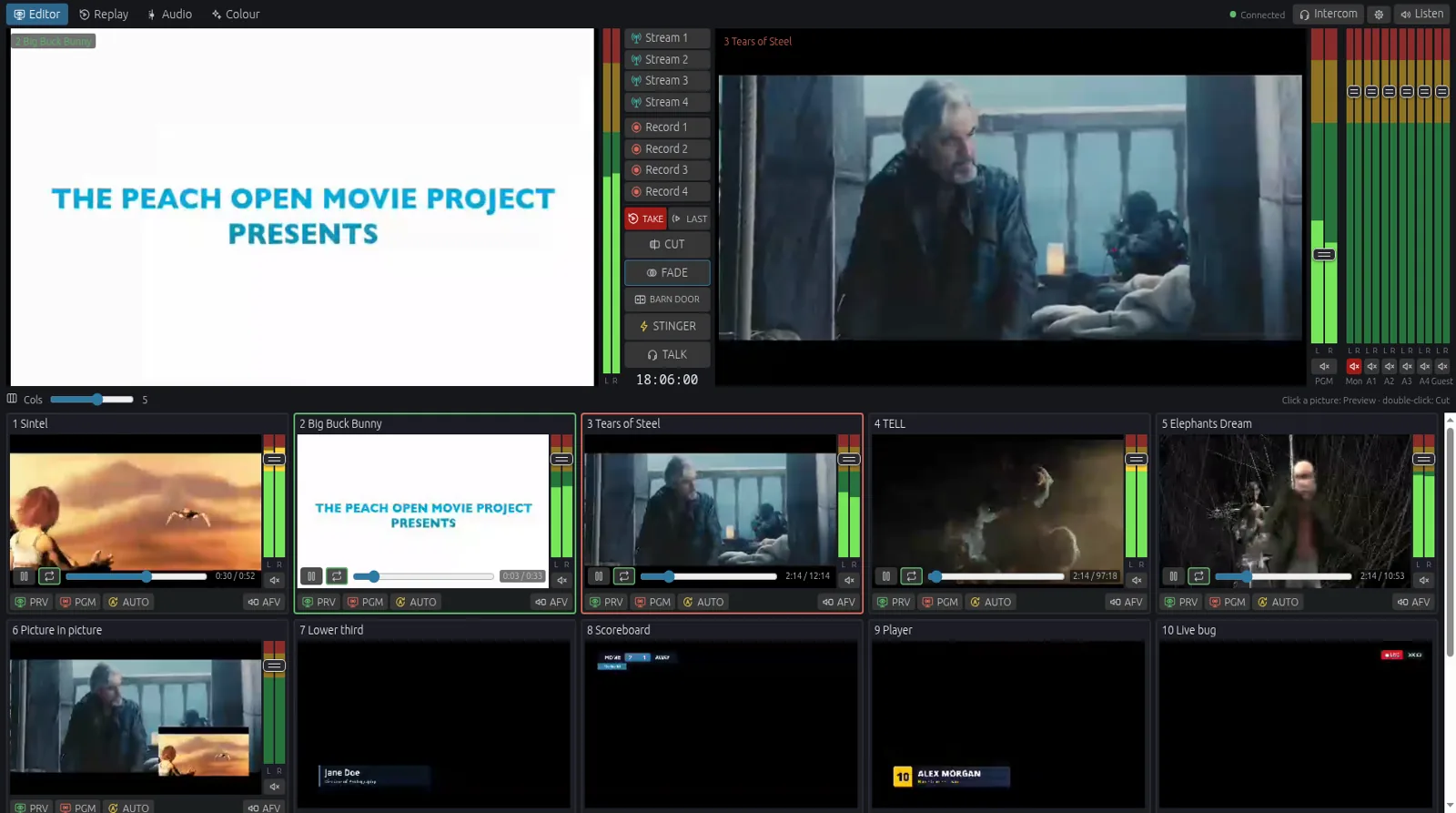
- Open it: Settings → Remote control → Control surface lists a link for this computer, the network and (with STREAMIX Online) the internet. Copy copies the whole link including the token; Open opens it in your browser. Share these links only with your team.
- From anywhere: with Remote control through hub.streamix.studio switched on (STREAMIX Online), the internet link works without port forwarding.
- Listen plays the Program mix in the browser. It is only sent while someone listens.
- Intercom: when a talkback room is set up, Intercom joins it from the browser. You hear the crew, and TALK is push-to-talk from your own microphone. The gear sets your microphone, the audio output (also used by Listen) and the name the crew sees.
- Light on the encoders: STREAMIX packs all pictures into one small video, encodes it once (Intel GPU first, so NVENC stays free for your streams) and sends it to every browser. A viewer needs about 1.7 Mbit/s, plus about 0.1 Mbit/s for sound. The Replay and Colour tabs add one 1280×720 picture each (about 3.5 Mbit/s) while they are open.
Browsers allow their video decoder and the microphone only over https or on the computer itself. On a plain http:// network address the page shows pictures as JPEG instead (about 10 Mbit/s, fine in a studio network), and you can listen to the intercom but not talk. The internet link is https and has everything.
Tabs
- Editor: the Studio desk as above.
- Replay: the replays in a list on the left, a multicam of every angle of the selected replay, Program, and the cameras armed for replay below. Pick a replay (it loads paused at its start) and tap the angle it starts with: the angle on air in the replay has a red border. EDIT REPLAY plays it in the replay player only (not on air); tap the angles to cut, and everything after a cut is recut from there. The cuts are saved with the replay. ROLL TO PROGRAM puts it on air with the replay transition, BACK TO LIVE ends it.
- Audio: a mixing desk with one channel strip per input: gain, 3-band EQ with frequencies, low cut, compressor with threshold, noise suppression, limiter, routing to PGM, A1–A4 and Guest, MON (to the monitor bus, like PFL), AFV, mute and a long fader on a meter. The bus masters are on the right.
- Colour: tap an input to grade it. It comes in full 1280×720 with its grade applied, as on Program, with a waveform and a vectorscope; Shadows / Midtones / Highlights wheels with brightness dials, exposure, temperature, tint, saturation and contrast. Copy grade and Paste grade match cameras.
Remote guests (VDO Ninja)
- Open an input's source picker, choose Remote Guest (VDO Ninja) and click Create input. The guest link is copied to the clipboard straight away.
- Click the copy-link button on the tile and send the link to your guest. They open it in any browser, on a laptop or phone.
- The guest appears as a live input with peer-to-peer video and audio, without a cloud hop in between.
Guest links run on STREAMIX's own servers (remote-guest.jrp.app), powered by VDO.Ninja.
Turn on Send return feed to guest so they see and hear the show. The return feed carries Program video and the Guest bus audio; route only what the guest should hear to that bus. A View return link lets you check what the guest receives. Per guest you can set the maximum video bitrate. Guest audio is always stereo and untouched (no auto gain, echo cancellation, noise suppression or noise gate), so guests should wear headphones. If a guest's connection gets stuck, use the reconnect button on the tile (or Reload / reconnect in the input settings).
Talkback & tally
TALLY-BACK connects the director with camera operators and crew. Crew join from their phone via an operator link, with no app and no login. They hear the director, can talk back, and their screen shows red/green tally for their camera.
- Click the ⚙ part of the TALK button to open the Talkback window: sign in under Settings → Licence if asked, choose a room, enter your name and click Connect. Share the Operator link (Copy) with your crew.
- Hold TALK, or a push-to-talk hotkey or Stream Deck key, to speak. Your mic is only sent while it's held.
- Use a headset, because the talkback path has no echo cancellation.
- Rooms come with STREAMIX Online.
STREAMIX Online
The subscription adds hosted services on top of Unlimited:
- SWARMCAST: hosted players with a public watch page and viewer chat. Any of your computers can stream to a player, one at a time (Take over moves it).
- TALLY-BACK: talkback and tally rooms for your crew (one STREAMIX per room; Take over moves it).
- Network bonding through STREAMIX Cloud.
Manage the subscription and services in your account.
Settings reference
Project
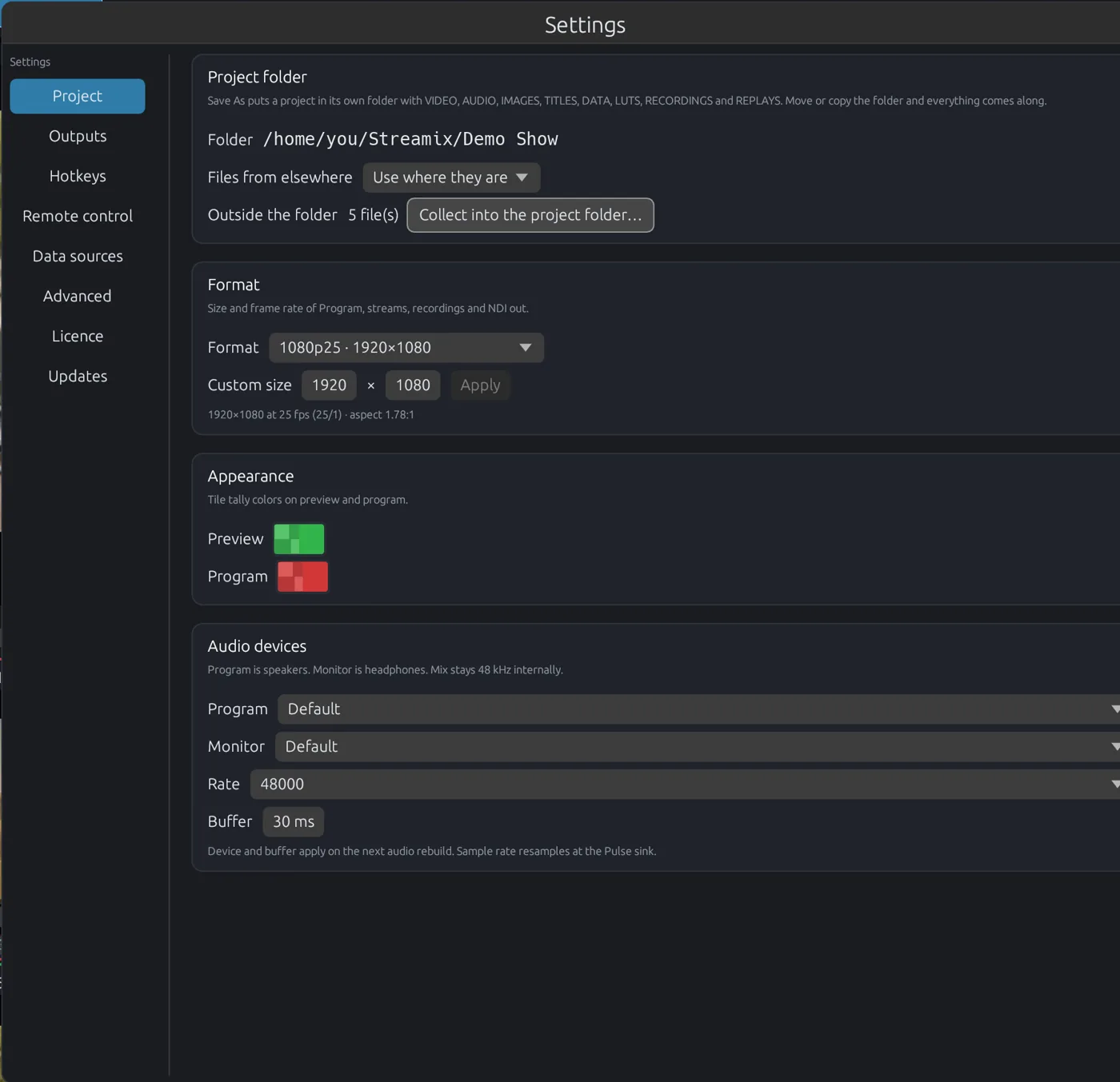
Project folder shows where the project lives, what to do with files from other places, and Collect into the project folder… (see Project folders). Format sets the size and frame rate of Program, streams and recordings, with custom sizes allowed. Appearance sets the tally colours for preview and program. This tab also holds Audio devices (program and monitor device, rate, buffer). Talkback has its own window (see Talkback & tally).
Outputs
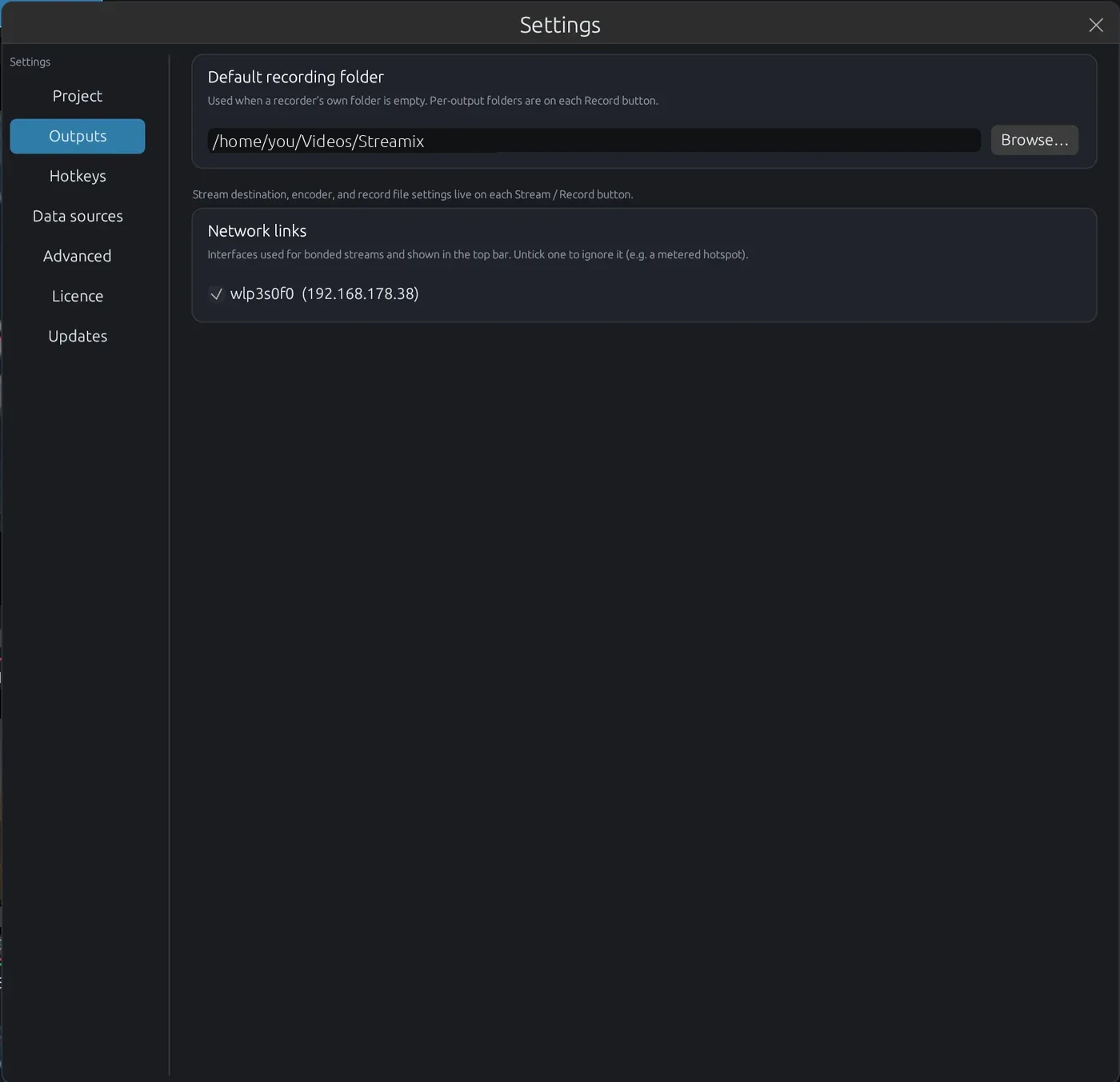
Default recording folder and the network links used for bonding (untick an interface to ignore it, for example a metered hotspot). Destination, encoder and file settings live on each Stream / Record button.
Hotkeys
Two sub-tabs: Keyboard and Stream Deck.
Remote control
Who may connect (this computer, the network, the internet through hub.streamix.studio), the token, the web control surface links and the Action API.
Data sources
Data feeds for titles.
Advanced
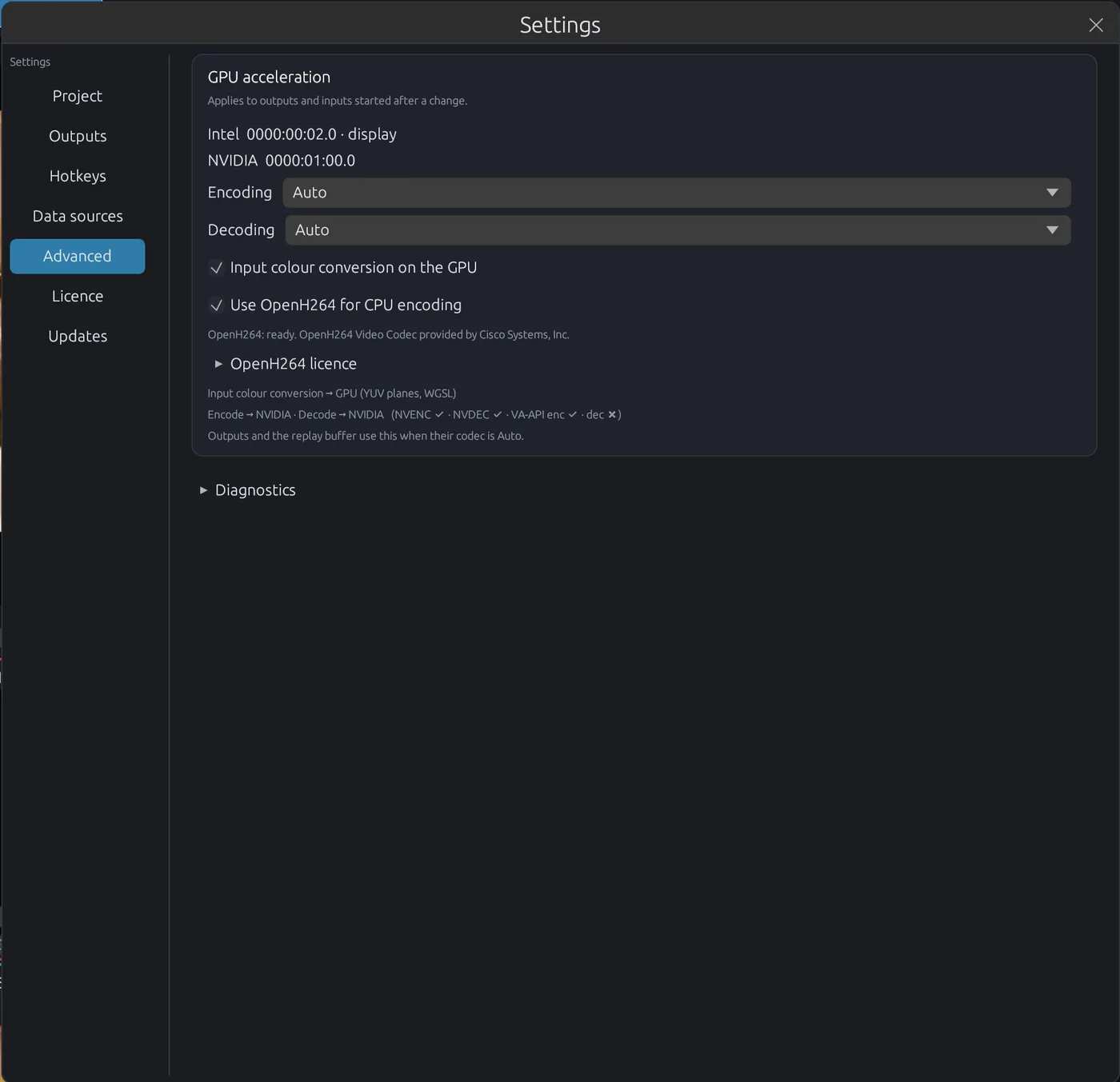
GPU acceleration sets the preferred encoder and decoder for this machine. Every hardware path is tested before use and falls back to software automatically. This tab also has an option for input colour conversion on the GPU, plus diagnostics.
Licence
See Licence & sign-in.
Updates
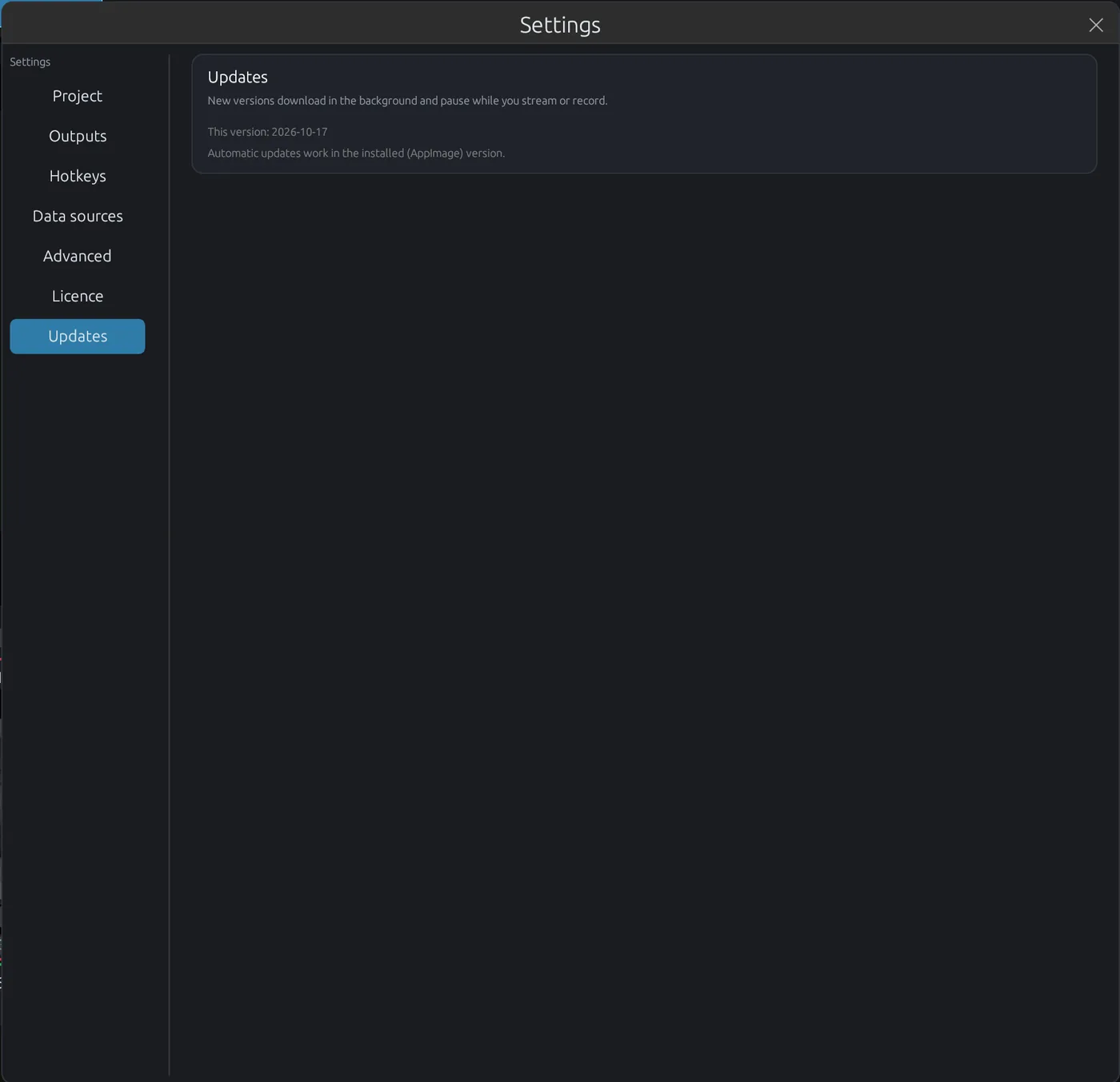
Shows the update status, with Check now. Automatic updates work in the AppImage version.
Project folders
Every project lives in its own folder, with everything the show uses. Save As creates one:
My Show/
  My Show.streamix
  VIDEO/  AUDIO/  IMAGES/  TITLES/  DATA/  LUTS/  RECORDINGS/  REPLAYS/
Keep every file of a show inside its project folder. Put videos in VIDEO, sound in AUDIO, pictures and logos in IMAGES, spreadsheets and CSV files in DATA and colour LUTs in LUTS. Then the folder is the whole show: back it up, move it or take it to another computer, and nothing goes missing. Files that stay somewhere else only work on the computer that has them, and they break when they are moved or renamed.
- On start: STREAMIX opens the project you last opened or saved. The very first time it creates
Untitledin~/Streamix; use Save As to give a show its own name and folder. - Files from elsewhere: when an input, a title image, a data file or a LUT comes from outside the folder, STREAMIX asks: Copy into the project folder or Use them where they are. Tick Remember my choice for this project to stop asking. Copies are made in the background, then every input and title uses the copy. Settings → Project changes the choice later and collects files that are still outside.
- Move it, copy it: paths inside the folder are stored relative to it. Copy the folder to a USB drive or another computer and the show opens with all its files.
- Titles are also written to
TITLESas.smxtitlefiles, which open in any STREAMIX. Recordings and replays of the project go toRECORDINGSandREPLAYS. - Double-click to open:
.streamixfiles open STREAMIX with that project. If STREAMIX is already running, it switches to the project.
Media files
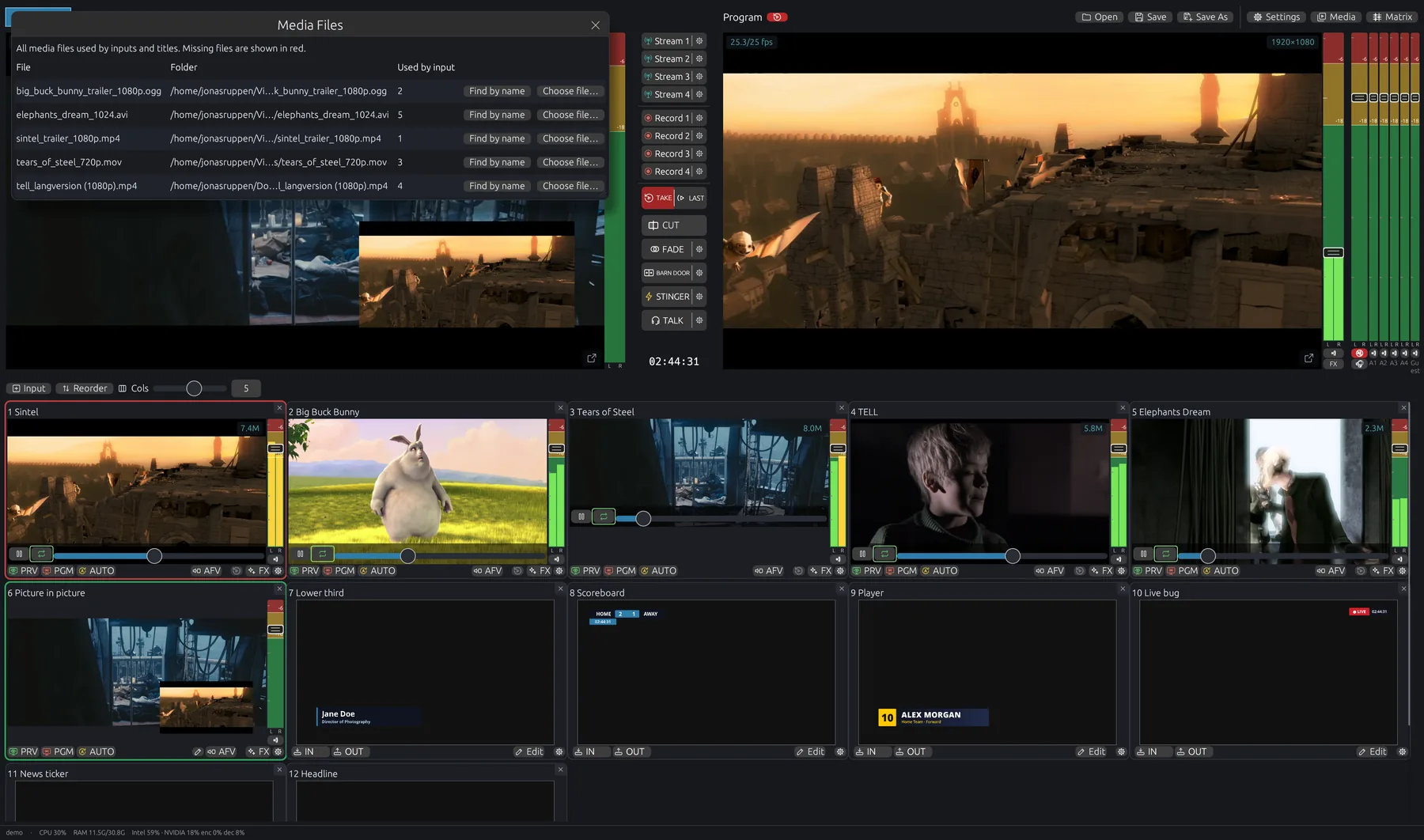
Media in the top bar lists every file the project uses (videos, images, title images) and which input uses it. Missing files are highlighted. Find by name searches a folder for a moved file, and Choose file… swaps in a different file for every input that uses it. Title images have Relink…, which also relinks other missing title images in the same folder. This is useful after copying a project to another machine. Projects in a project folder avoid that: their files travel with them.
Crash recovery
STREAMIX runs under its own supervisor. If the app ever crashes, it restarts within seconds and resumes the streams and recordings that were running. Your project, replay arming and outputs come back too. A banner says STREAMIX recovered from a crash at HH:MM with a Crash report link (in ~/.cache/streamix/). Recordings continue in new files. After more than 5 crashes within 2 minutes the supervisor stops restarting and nothing resumes on the next start. A normal quit never auto-starts anything next time.
Quitting while something is live asks first (Stop all and quit).
NDI®
STREAMIX sends and receives NDI® video and audio on your local network, in every edition. The NDI library is built into STREAMIX, so there is nothing extra to install.
- NDI inputs: add an input and pick NDI Video or NDI Audio. Sources on the network show up by name. Full-bandwidth NDI and NDI HX (H.264) both work. NDI HX sources that send H.265 need a GPU decoder (NVIDIA or Intel/AMD with VA-API).
- NDI output: in the Matrix, tick NDI out on any output to publish it as a full-bandwidth NDI source, with an optional audio boost for NDI only. STREAMIX doesn't send NDI HX.
Discovery uses mDNS: if no sources appear, make sure your firewall allows mDNS (UDP 5353) and NDI (TCP/UDP 5960 and up) on the local network.
NDI® is a registered trademark of Vizrt NDI AB. STREAMIX includes the NDI® SDK, Copyright © NDI, Inc., used under the terms in the STREAMIX licence terms.
Troubleshooting
The AppImage doesn't start
Make sure it's executable (chmod +x). Some minimal distros need FUSE: install fuse / libfuse2, or run it with --appimage-extract-and-run.
Stream Deck isn't detected
Use Allow Stream Deck access… in Settings → Hotkeys → Stream Deck, then re-plug the deck.
An SRT input stays on "Connecting"
Check that the mode is correct: one side must be Caller, the other Listener. Also check the port, any firewall (UDP) and that the passphrase is identical on both sides. Try Scan LAN.
Remote guests have no audio or video
Strict corporate networks can block peer-to-peer connections. Ask the guest to try a phone hotspot. Studio connects over its default network interface only, never over a VPN / overlay network.
Dropped frames when streaming
Pick a GPU encoder (Settings → Advanced), lower the bitrate, or enable Lower bitrate if the network congests. Watch the CPU/GPU readouts in the status bar.
Something else?
Mail info@jrp.app. If STREAMIX crashed, attach the newest ~/.cache/streamix/crash-*.txt.
Environment variables
For advanced setups. Set them before launching the AppImage.
| Variable | Effect |
|---|---|
STREAMIX_PROJECT | A .streamix project to open on start instead of the last one. |
STREAMIX_ACTION_PORT | Action API port (default 8091). |
STREAMIX_NO_UPDATE=1 | Disable automatic updates. |
STREAMIX_NO_SUPERVISOR=1 | Run without the crash supervisor (debugging). |
STREAMIX_SRT_SCAN_PORTS | Extra ports probed by SRT Scan LAN, in addition to the built-in ones (e.g. 9000,10000-10010). |
STREAMIX_NO_BROWSER=1 | Don't open the web browser automatically for sign-in (open the shown link yourself). |
STREAMIX_CEF_SOFTWARE=1 | Render browser sources without the GPU. |